How to connect an HDMI touch display to an NVIDIA Jetson, a Windows PC or Ubuntu
One HDMI cable for video and one USB cable for touch and power. No drivers on Windows 10 and 11, Ubuntu, Debian or JetPack. This guide covers each host, power and screen rotation.
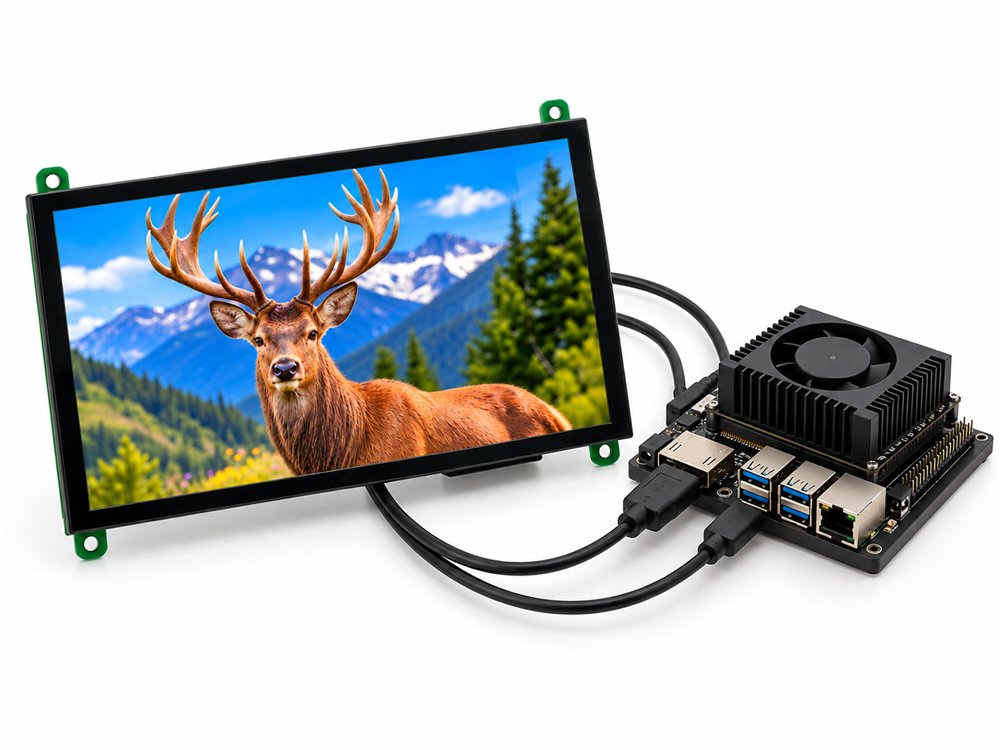
The 7 inch display wired to a Jetson developer kit with one HDMI and one USB cable
Setup in three steps
The same steps apply to every host below.
Connect the HDMI cable
Plug an HDMI cable from the Jetson, PC or mini PC into the display. The display reports its native 1024 x 600 mode over EDID.
Connect the USB cable
Plug the USB cable from the display into a USB port on the host. This one cable carries 5 V power and the capacitive touch data, and the touch controller shows up as a standard USB HID device.
Power on and check the display settings
Windows 10 and 11, Ubuntu, Debian and JetPack detect the panel and the touch screen with no driver. Use the operating system's display settings to extend or duplicate the desktop and to rotate the screen.
Notes for each host
NVIDIA Jetson (Orin Nano, Orin NX, Xavier)
- HDMI out of the developer kit goes to the display; touch is read over USB and power is 5 V from the carrier.
- JetPack and Ubuntu use the kernel's generic HID multitouch driver, so touch works out of the box on Jetson Orin Nano, Orin NX and Xavier developer kits.
Windows 10 and 11 (PCs, laptops, mini PCs and NUCs)
- Windows detects the panel and the touch screen with no driver.
- Windows treats the display as a 1024 x 600 monitor and a touch digitiser, so you can use it as a second screen.
- Open Display settings to extend or duplicate the desktop, and Display orientation to rotate it.
Ubuntu and Debian desktops
- The touch controller is a standard USB HID device, so touch works without installing anything.
- On Ubuntu use Settings, Displays to rotate the screen.
Power and touch
The display is powered at 5 V through its USB connector. For the 10.1 inch model we recommend a dedicated 5 V, 2 A supply so the backlight does not share the host's USB budget.
The capacitive touch controller is a standard USB HID device. It works on Windows 10 and 11, Ubuntu, Debian, Raspberry Pi OS and Android without installing anything.
Jetson, Windows and Ubuntu questions
Do I need a driver for the touch screen?
No. Touch is a standard USB HID device, so it works on Raspberry Pi OS, Ubuntu, Debian, Windows 10 and 11, and Android without installing anything.
Can I use it with a Windows laptop or mini PC as a second screen?
Yes. Windows treats it as a 1024 x 600 monitor and a touch digitiser. Use Display settings to extend or duplicate the desktop and to rotate the screen.
Does the touch screen work with NVIDIA Jetson and Ubuntu?
Yes. JetPack and Ubuntu use the kernel's generic HID multitouch driver, so touch works out of the box on Jetson Orin Nano, Orin NX and Xavier developer kits.
How is the display powered?
Through its USB connector at 5 V. A Raspberry Pi USB port is enough for the 7 inch model. For the 10.1 inch model we recommend a dedicated 5 V, 2 A supply so the backlight does not share the Pi's USB budget.
How do I rotate the screen to portrait?
On Raspberry Pi OS Bookworm open Preferences, Screen Configuration, select the HDMI output and set the orientation; touch follows the rotation automatically under Wayland. On Windows use Display settings, Display orientation. On Ubuntu use Settings, Displays.
Order online or talk to an engineer
Single units ship from stock in Gurugram. For 100 pieces and above, or a custom cover glass, cable or enclosure, send us your requirement and we reply within one working day.